

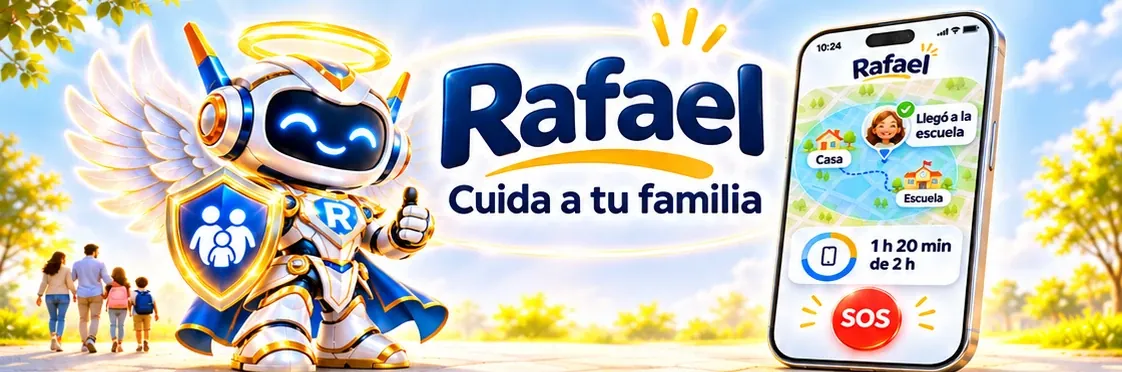
Rafael: Your family’s protector
Rafael is a parental control app. It blocks what isn't right for kids across the whole home, limits screen time and alerts you right away if your child needs help.
The app isn't in the stores yet. We'll let you know the day it's out.
- Free, with every feature
- No ads on the child's device
- Supervision only for children under 18


You decide with one tap
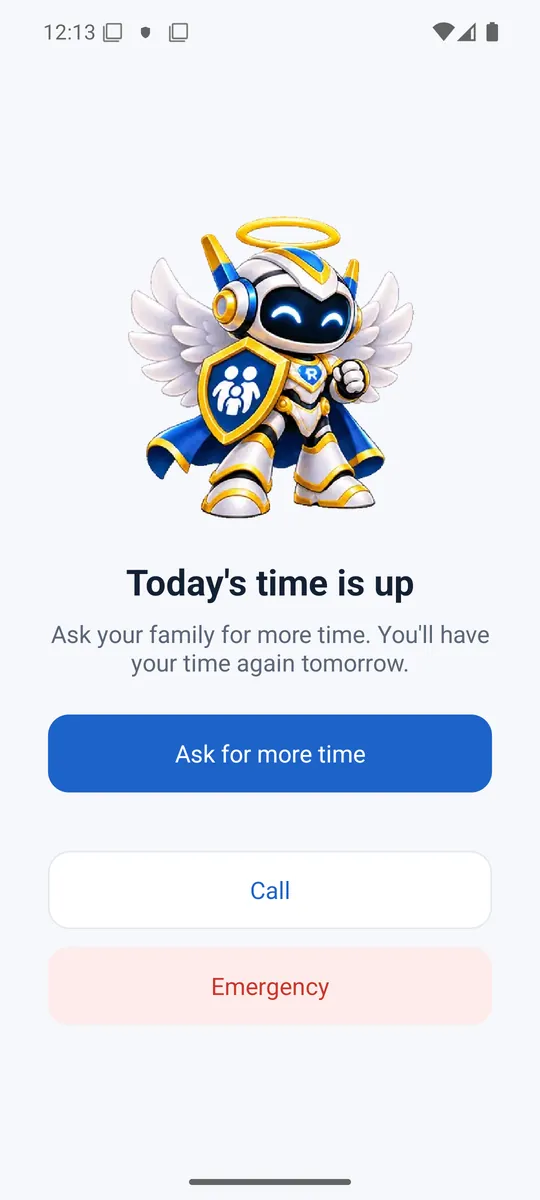
When the day's time is up, your child can ask for more from their screen. You get an alert and answer right from it. Try it here.
Tap “Give 15 minutes” or “Decline”.
 Rafael · now
Today's time on the tablet is up.
What Rafael does
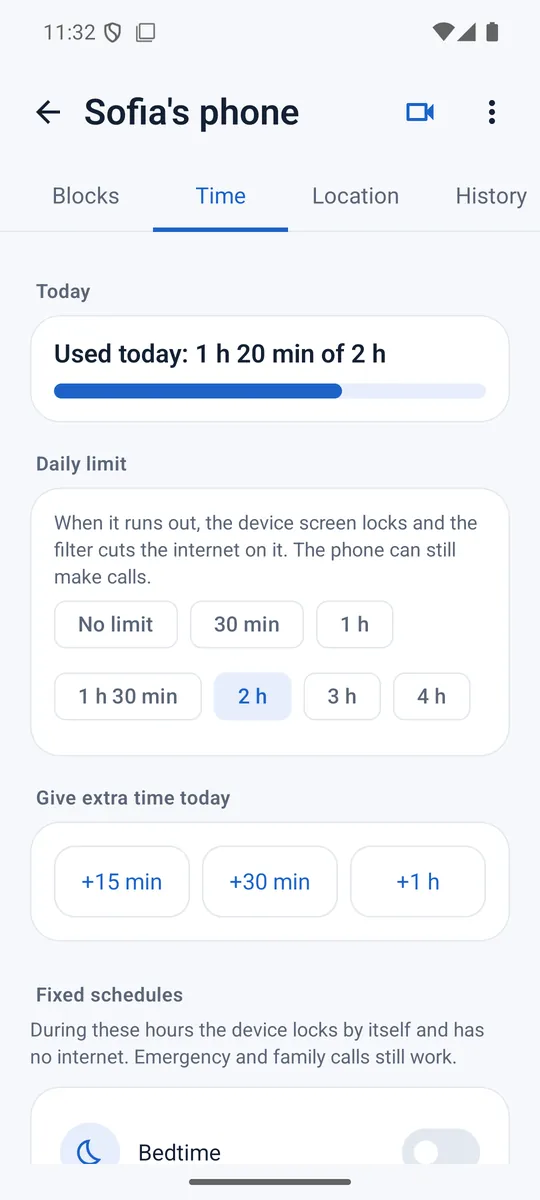
Rafael blocks what isn't right for kids across the whole home 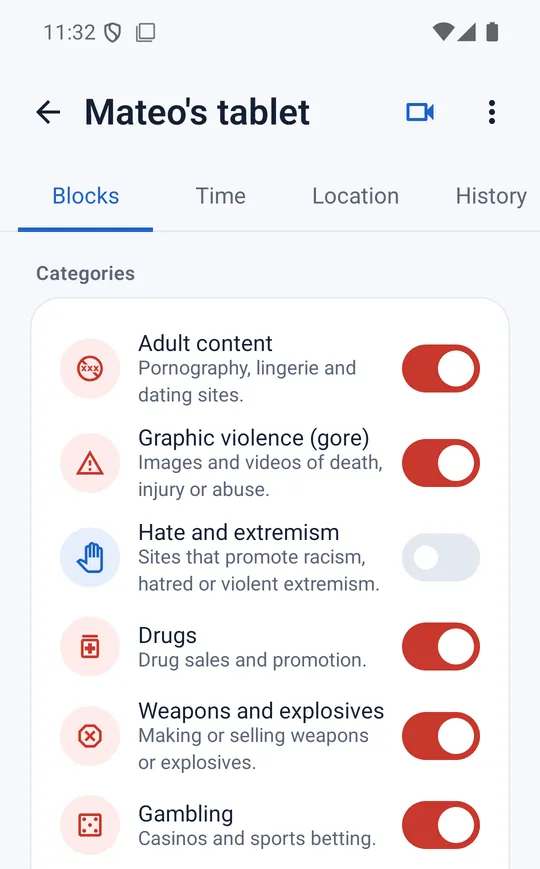 , sets a time limit for each device
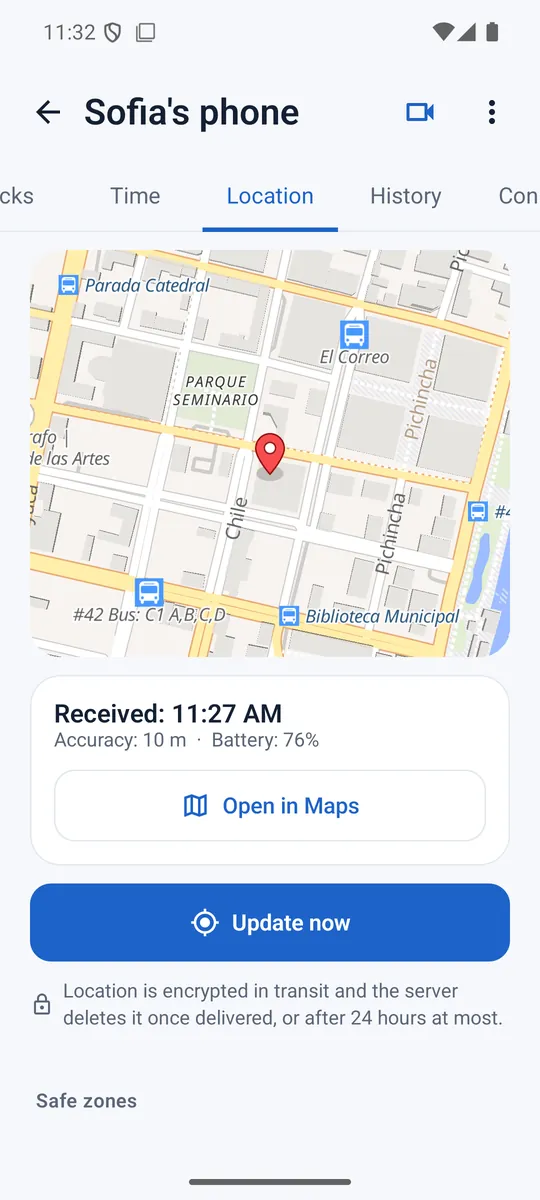
 , shows you on a map where your children are
 and gives them an emergency button
 .

It's one app for your phone and for your children's devices: Android, iPhone, iPad, TV Box, Fire TV and Windows computers.
One app, a mode for each phone
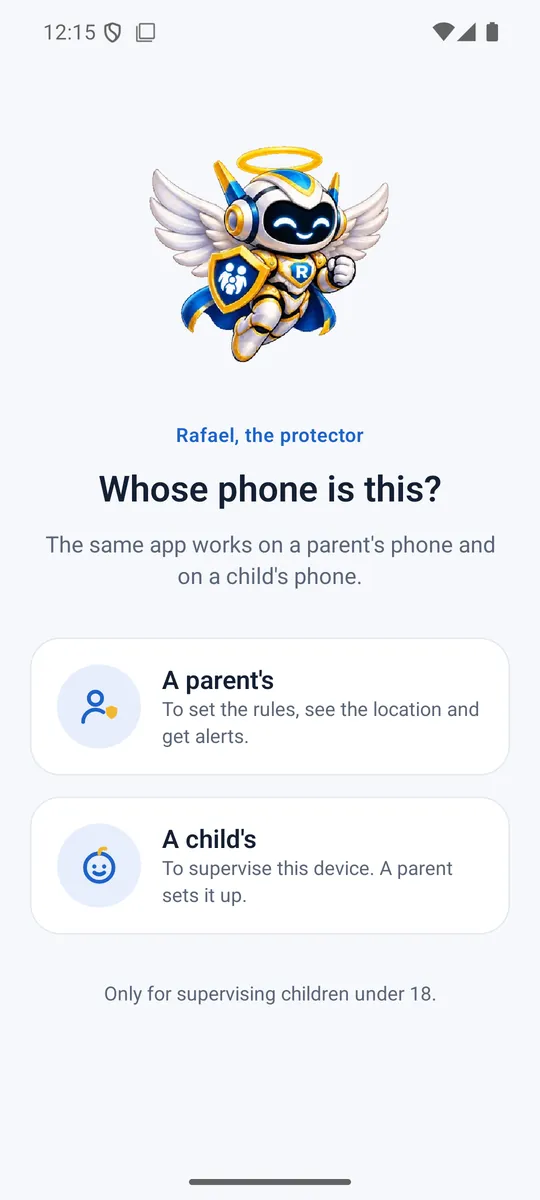
The same app goes on your phone and on your child's. The first time it opens, it asks whose phone it is.
Everything is managed from here
- You choose the categories, apps and sites to block or allow.
- You set the daily limit, the schedules and the safe zones.
- You get the alerts and check the history and location.
The device knows it's supervised
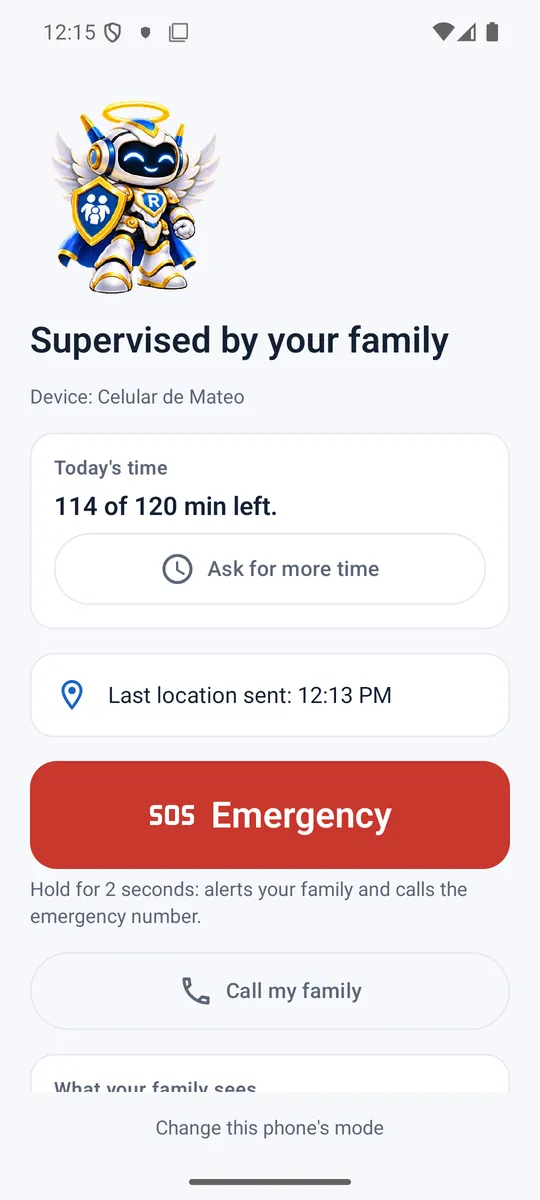
- It always shows the “Supervised by your family” notice.
- It never shows ads or purchases.
- The mode can only be changed with the PIN the parent creates.
The app's first question: “Whose phone is this?”

One filter for the whole home
It blocks entire categories on your child's devices and on your home network. It also blocks or allows the apps, games and sites you choose.

Android phones and tabletsThe filter works on any network, mobile data included.

TV Box and Fire TVThe same app, installed on the TV.

Windows computersScreen time, schedules and blocked programs.
iPhone and iPadThe filter is installed as a profile named “Supervised by your family”.
MacNo app: the filter is installed from Safari as a profile named “Supervised by your family”.

Apple TV, game consoles and smart TVsThey're filtered from your home router's DNS. The app includes a step-by-step guide.

The 14 categories
- Adult content
- Graphic violence
- Hate and extremism
- Drugs
- Weapons and explosives
- Gambling
- Chats with strangers
- Scams
- Dangerous sites
- Social media
- Online games
- Piracy and hacking
- Cults
- Fake news
A time limit for every day
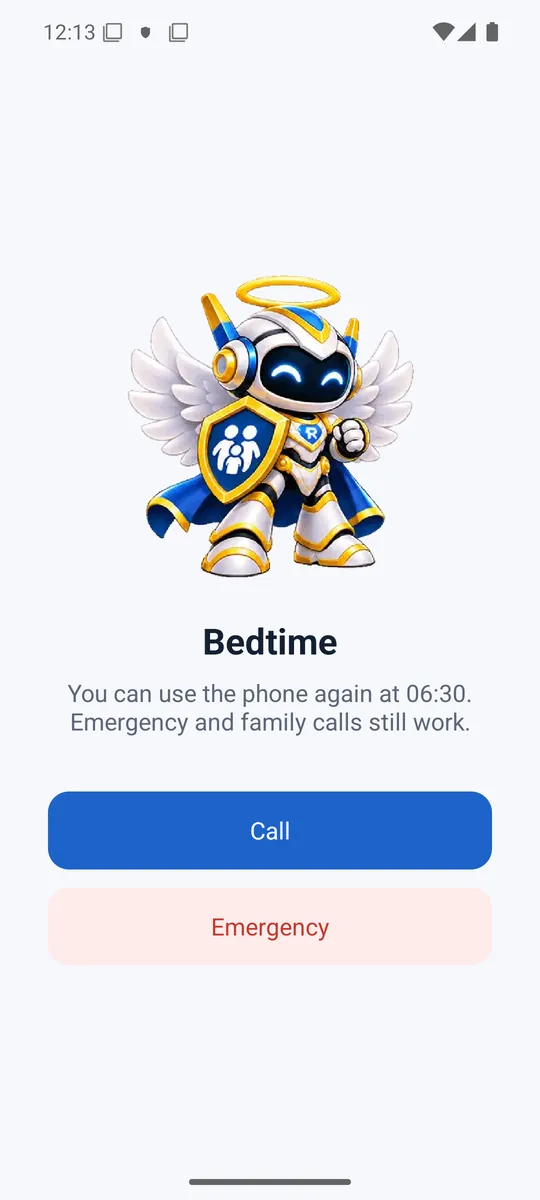
When the day's time is up, the device locks. The phone can still call the family and use the emergency button.

Daily limit
You see the minutes used from your phone. If needed, you give extra time for today only: 15 minutes, 30 minutes or 1 hour.

Ask for more time
Your child taps a button on the lock screen. You answer from the alert with “Give 15 minutes” or “Decline”.
Fixed schedules
Pick the days and hours for bedtime or school. During those hours, the device locks by itself.
Apps and pause
On Android and Windows you see the time spent in each app and block the ones you choose. With “Pause”, you cut the internet on a device until you resume it.
On iPhone and iPad, the daily limit, schedules and “Ask for more time” are coming soon: they need an Apple permission that is in process.
Know where they are
Location, zones, the emergency button and video calls work on Android, iPhone and iPad. Alerts reach your phone within seconds.

Location on a map
Your child's device sends its location encrypted for the parents' phones. The server deletes it once delivered, or after 24 hours at most.
Safe zones
Mark home or school on the map. For each zone, choose whether you're alerted on arrival, on leaving or both.

Emergency button
Held down for 2 seconds, it alerts the family and calls the emergency number. It comes set to 911 and can be changed.
Speed alert
You get an alert if the device moves faster than the limit you choose, for example in a vehicle.
Possible fall
If the device detects a fall, it asks “Are you OK?”. With no answer in 30 seconds, it alerts the family. It can give false alarms.
Android only

Family video call
Video call your child's device, and your child decides whether to answer. The app doesn't turn on the camera or microphone remotely.

The emergency button, fall detection, zones and location don't guarantee that an alert arrives or that someone comes.
They depend on the device's battery, signal, GPS and permissions. In an emergency, call your local emergency number yourself too.
For older adults too
Rafael also protects older adults. It blocks scam pages, explains to the person why it was a scam and, if they want, alerts a family member. With their permission, it helps find them if they get lost.
- The person installs and accepts it on their own phone. There's no PIN: they can stop using it whenever they want.
- It explains each block in large text and out loud.
- Their family doesn't see the pages they visit, their messages or their photos.
- “Help if lost” is optional. The person accepts it or, if they can't decide, their carer or legal representative.
Rafael shows where the device is, and it works if the person carries it.
How their data is handled
What we keep, and what we don't
We don't keep your history, location, alerts or photos; only rules, devices and schedules.
History, location and alerts travel encrypted with your family's key. The server deletes them once delivered, or after 24 hours at most.
Read the privacy policy
- A key only the parents haveHistory, location and alerts are encrypted with the family key. That key is only on the parents' phones.
- Deleted once deliveredThe server deletes them when they reach every parent's phone, or after 24 hours at most.
- Each profile photo is encryptedIt's encrypted on your phone before it's sent. The server can't see it.
- Alerts with no visible contentThe notification only carries the alert's number and type. The details are downloaded encrypted.
- Children's data is never used for adsAds only appear in parent mode, on the free plan, and they aren't personalized.
Four steps from your phone
- Choose “A parent's” and check the responsibility declaration.
- Add each child with their name, year of birth and, if you like, a photo.
- On your child's device, install the same app, choose “A child's” and enter the code.
- Turn on the categories, daily limit, schedules and zones. Changes reach the device automatically.
- First, install the appChoose “A parent's” and check the responsibility declaration.
- Next, create the profilesAdd each child with their name, year of birth and, if you like, a photo.
- Then, connect their devicesOn your child's device, install the same app, choose “A child's” and enter the code.
- Finally, choose the rulesTurn on the categories, daily limit, schedules and zones. Changes reach the device automatically.
The declaration confirms that you're the parent or legal guardian and that you'll only supervise minors under 18 in your care. The code to connect a device expires after 24 hours.
Free. Everything included.
Every feature is in the free plan. Paid plans remove the ads or allow more devices.

Free
- Every feature.
- 1 device.
- Non-personalized ads, only on the parent's phone.
No ads
Or US$3.99, depending on your country.
- Every feature, with no ads.
- Up to 2 devices.
- You pay only once.
Family monthly
Or US$2.99 a month, depending on your country.
- Every feature, with no ads.
- 3 to 10 devices, for families with several children or many devices.
- Cancel anytime from the store.
Family yearly
Or US$24.99 a year, depending on your country.
- The same as Family monthly: no ads and 3 to 10 devices.
- You pay once a year, and it costs less than paying every month.
- Cancel anytime from the store.
The child's device never shows ads, on any plan.
Payments are processed by Google Play or the App Store. The store shows the final price in your currency before you pay.
When is Rafael coming out?
Very soon, on Google Play and the App Store. If you'd like us to tell you the day it's out, write to apps@electrotecniweb.com.
How much does it cost?
The free plan has every feature for 1 device, with ads. No ads, for up to 2 devices, costs US$5.99 or US$3.99 once, depending on your country.
The Family plan, with no ads and 3 to 10 devices, costs US$4.99 or US$2.99 a month, or US$39.99 or US$24.99 a year, depending on your country.
Can I turn on my child's camera or microphone remotely?
No, and that's on purpose. The app never turns on the camera or microphone without your child knowing. To see and talk to them, use the family video call: your child decides whether to answer.
Does my child know their device is supervised?
Yes. The device always shows the “Supervised by your family” notice. On iPhone and iPad, the filter profile appears under that same name in Settings.
The app also tells your child what the family sees: where the device is, how long it's used, the sites requested and emergency alerts. The family doesn't see their messages, photos or passwords.
Can ElectroTecniWeb see my child's history?
No. History is encrypted with the family key, which is only on the parents' phones. The filter sees each site only while answering the request, because it needs it to block it, and never writes it to a log.
What data does ElectroTecniWeb keep?
Only what the filter needs to work: the family, the devices, their rules, limits and schedules, the home network's IP address, the children's profiles with their name and year of birth, and the plan purchased.
Each profile photo and the safety settings are stored encrypted. The full detail is in the privacy policy.
Which devices does it work on?
The app works on Android phones and tablets, TV Box, Fire TV, iPhone, iPad and Windows computers. Mac has no app: the filter is installed from Safari as a profile. Apple TV, game consoles and smart TVs are filtered from your home router's DNS, with the guide included in the app.
The store for each device is listed on Download on every device.
What works on iPhone and iPad?
The content filter, location, zones, the speed alert, the emergency button and video calls. The daily limit, schedules and “Ask for more time” are coming soon.
Does the filter work on mobile data?
On an Android phone, yes: the filter is set in the phone's “Private DNS” and works on any network. The router filter only covers devices connected to your home Wi-Fi.
Can the other parent use the app?
Yes. In Settings, create an invitation with a code that's valid for 30 minutes. The other phone accepts the same responsibility declaration, and both show the same 4-digit number to confirm. Each family can have up to 4 parent phones.
Can I use the app to supervise an adult?
No. The app is only for a parent or legal guardian to supervise their own children or the minors under 18 in their legal care. Using it on adults, including a partner, is prohibited.
“An older adult's” mode is different: it isn't supervision. The person installs and accepts it on their own phone to protect themselves from scams, and can stop using it whenever they want.
What happens if I change phones or uninstall the app?
History, location and alerts are kept only on the parents' phones. If another phone in the family still has the app, it keeps what it received. If all of them are lost, that data can't be recovered, because only those phones have the key.
Why does the app have ads?
Ads and payments keep the filter servers running. They only appear on the parent's phone, on the free plan, and they aren't personalized. Remove them with the one-time payment or with the Family plan.
How do I delete my account and data?
In the app, go to Settings → Delete family and all data. If you no longer have the app, follow the steps in Delete your account and data.
Coming very soon
Rafael is coming to Google Play and the App Store soon. In the meantime, write to us and we'll let you know the day it's out.

Rafael, the protector
Whose phone is this?
The same app works on a parent's phone and on a child's.
Choose an option to see what happens next.
Notify me when it's outChild mode is only for supervising children under 18.